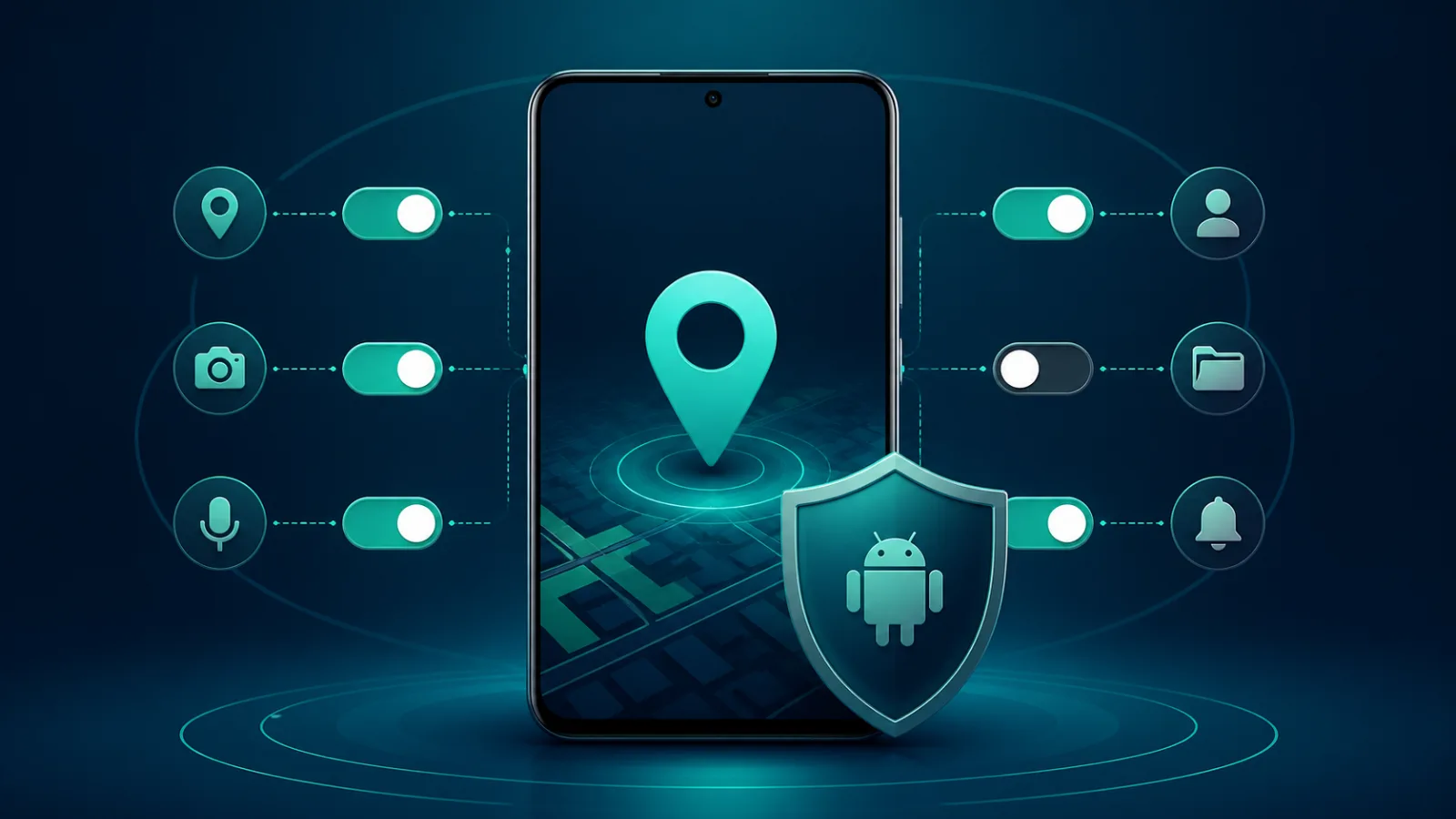
Location access is not automatically suspicious. Maps, weather, ride-sharing, emergency, and lost-device features all need it at the right moment. The privacy problem is usually scope: an app receives precise or background access when approximate or foreground access would do. Android’s Privacy Dashboard makes that mismatch much easier to spot.
Start with the Privacy Dashboard
Open Settings, then Security and privacy or Privacy, and select Privacy Dashboard. Names vary slightly by phone maker. Choose Location to see which apps accessed it recently. Android 13 and newer can show a seven-day view; Android 12 commonly shows the previous 24 hours. Focus on apps you did not actively use when access occurred.
A recent access does not prove tracking or misuse. A weather widget, automation, Bluetooth accessory, or geofenced reminder may legitimately run in the background. Treat the dashboard as a prompt to ask whether the access matches a feature you knowingly use.
Choose the narrowest permission that still works
Tap an app in the location list and review its choices. “Allow all the time” is appropriate only when a core feature truly needs background location. “Allow only while using the app” is the sensible default for navigation, camera geotagging, local search, and many social apps. “Ask every time” adds friction but works well for occasional tools. “Don’t allow” is right when location has no clear benefit.
Android also separates precise and approximate location. Approximate access is often enough for weather, regional content, and nearby recommendations. Navigation, emergency functions, and finding a lost device usually benefit from precision. If switching to approximate breaks a feature you value, you can restore precise access for that one app without changing the whole phone.
Check what the developer says it shares
Google can display an information box when an app says it shares location with third parties. The label is useful context, but it is based on information supplied by the developer and may not cover every install source or preloaded app. Review the app’s Data safety section in Google Play and its privacy policy, then compare those claims with the permission the app requests.
| App type | Usually sufficient | Question to ask |
|---|---|---|
| Weather | Approximate, while using | Do widgets need background refresh? |
| Navigation | Precise, while using | Is trip tracking active after arrival? |
| Retail or restaurant | Approximate or denied | Does location improve anything you use? |
| Fitness tracking | Precise; background during workouts | Can access end with the workout? |
| Games | Usually denied | Is location central to gameplay? |
Review browser and account-level sharing too
App permissions are only one layer. A browser can have device location permission while individual websites have their own setting. Review site permissions in your browser and remove location access from sites that no longer need it. Separately, check voluntary location sharing in Google Maps and any family-safety apps. Revoking an app permission does not automatically end every account-level sharing arrangement.
Make the audit repeatable
Repeat the check monthly and after installing a travel, fitness, shopping, or social app. Pay special attention to permission changes after updates. Google may notify users when an app with location access changes its stated sharing practices; use that notification as a review prompt, not proof of wrongdoing.
Finally, remove apps you no longer use. Dormant apps add privacy and security exposure without providing value. Android can pause unused-app activity on supported devices, but uninstalling obsolete software is clearer.
Bottom line
A good Android location setup is selective, not absolute. Keep precise background access for the few features that need it, use approximate foreground access where it works, and deny the rest. If privacy is your broader concern, Majumedia’s guide to protecting yourself from AI-powered cyberattacks covers account and device defenses beyond location.