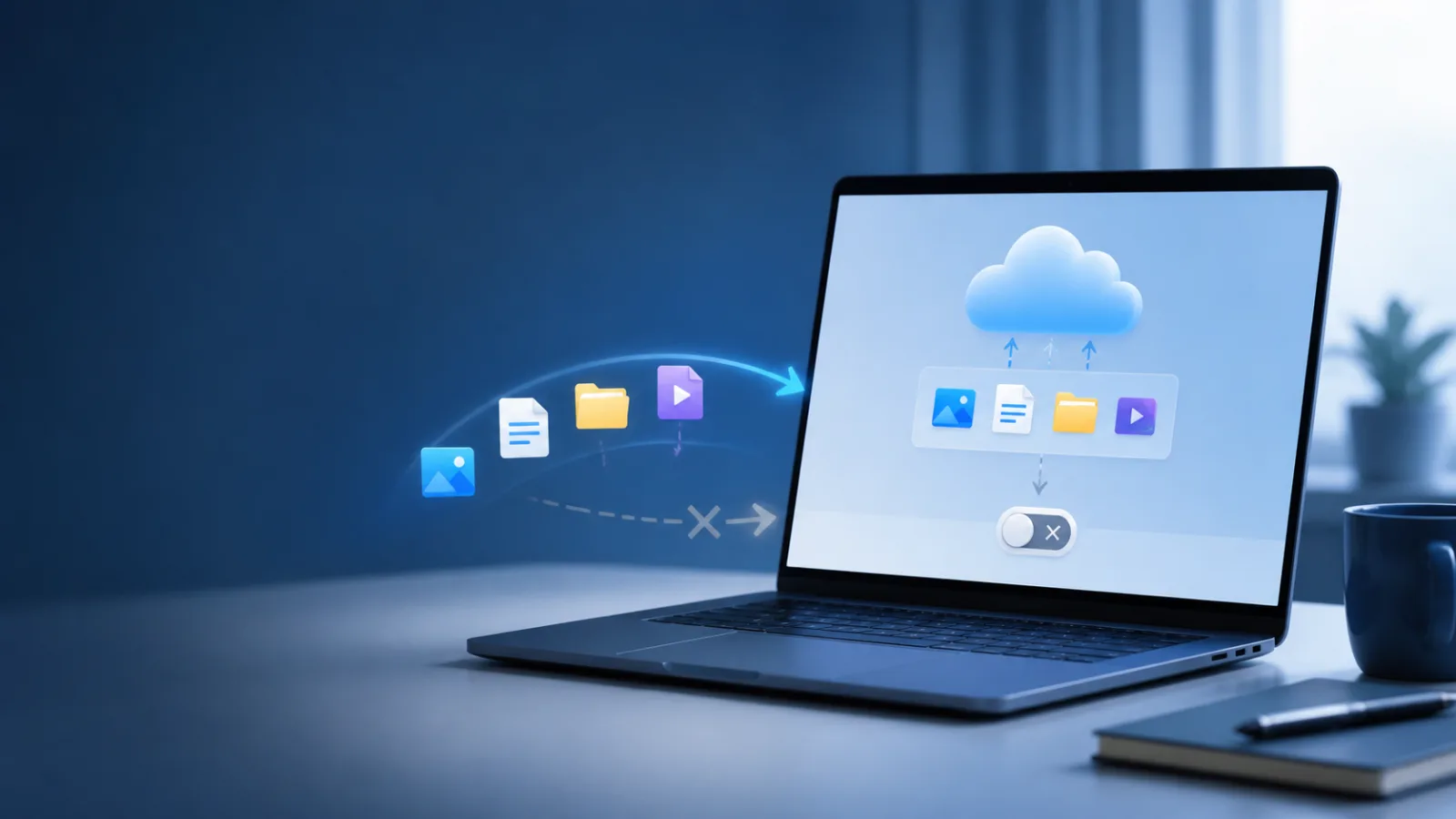
OneDrive can be useful, but its repeated invitations to protect Desktop, Documents, and Pictures are frustrating when you deliberately keep files local or use another backup service. The safest response is not to start deleting folders or uninstall the app immediately. First determine whether OneDrive is merely signed in, actively syncing files, or backing up Windows known folders.
Know what OneDrive is doing before you change it
Three separate settings are easy to confuse. OneDrive may run at startup without backing up your personal folders. It may sync files stored inside the OneDrive folder. Or it may redirect Desktop, Documents, and Pictures into OneDrive through folder backup. Open OneDrive from the cloud icon in the taskbar, choose Settings, then Sync and backup. The Manage backup screen shows whether those familiar folders are protected.
If a folder is already backed up, files visible on your desktop may actually live inside the OneDrive directory. That is why unlinking or uninstalling first can make files appear to vanish. Confirm that important files have a local copy before changing the relationship. A green check normally indicates a file is available locally; a cloud icon indicates an online-only item that must be downloaded first.
Stop folder backup without losing local files
Open OneDrive Settings, select Sync and backup, then Manage backup. Turn off the folders you no longer want OneDrive to protect. Windows may offer a choice to keep files only in OneDrive or on this PC. Choose the local option when your goal is to retain ordinary local folders, then verify the files in File Explorer before cleaning up duplicates.
For a cautious migration, create a temporary folder outside OneDrive and copy—not move—the most important documents into it. Open a sample of the copied files while disconnected from the internet. Once you know the local copies work, you can reorganize Desktop, Documents, and Pictures and remove unwanted cloud copies separately.
Reduce prompts while keeping OneDrive installed
You do not have to remove OneDrive to stop most interruptions. In OneDrive Settings, disable start-at-login if you only use the service occasionally. Windows Settings may also show backup recommendations under Accounts and Windows backup; review each category instead of accepting a broad setup prompt. Keep OneDrive installed if you share Office documents or occasionally retrieve cloud files, and launch it manually when needed.
If Windows presents a full-screen “finish setting up” experience, read each page carefully and choose the skip or decline option rather than enabling every suggested service. Microsoft changes wording over time, so focus on the result: do not enable folder backup unless you want Desktop, Documents, and Pictures synchronized.
Unlink this PC or uninstall OneDrive?
Unlinking signs the computer out of OneDrive while leaving the app installed. It is the better reversible step when you want to stop synchronization but might reconnect later. Uninstalling removes the sync client; it does not automatically delete files already stored in the cloud. Neither choice is a substitute for confirming that online-only files have been downloaded.
| Goal | Best action | Main caution |
|---|---|---|
| Stop Desktop and Documents backup | Turn off folders in Manage backup | Copy online-only files locally first |
| Pause syncing temporarily | Pause sync or quit OneDrive | Changes will not upload while paused |
| Stop using OneDrive on this PC | Unlink the PC | Confirm local file availability |
| Remove the sync app | Uninstall OneDrive | Cloud data remains in the account |
A practical backup plan after OneDrive
Turning off cloud folder backup should not mean having no backup. Keep at least one separate copy of irreplaceable files on an external drive or another reputable service. A useful backup is versioned, periodically tested, and disconnected from the computer often enough that ransomware or an accidental deletion cannot immediately affect every copy.
After making changes, restart the PC and check the taskbar, File Explorer, and OneDrive on the web. Verify that new files land where you expect and that no sync error remains. If you later re-enable backup, read the folder choices again to avoid duplicate directories.
Bottom line
The safest route is to stop folder backup first, verify local copies, and only then unlink or uninstall if necessary. That sequence removes the nagging behavior without turning a preference change into a file-recovery problem. For more storage housekeeping, see Majumedia’s guide to freeing Google Drive space without paying.