Windows operating systems are equipped with a variety of features designed to enhance productivity and organization. Among these is the underutilized virtual desktop feature, which can significantly alter how users manage their workspaces. Virtual desktops enable users to divide their tasks into separate desktop environments, optimizing focus and minimizing distractions.
Understanding Virtual Desktops
Virtual desktops within Windows are essentially separate desktop interfaces that allow users to organize tasks across different spaces. Each functions independently, simulating the experience of using multiple monitors on a single screen. They are accessible in both Windows 10 and 11, enabling users to segment projects and tasks as needed.
Setting Up Virtual Desktops
Creating virtual desktops is a simple process and offers significant benefits for organizing tasks. By hovering over the Task View icon or pressing Windows + Tab, users can manage their desktops. A new desktop can be created quickly using the Windows + Ctrl + D shortcut. Customizing these desktops with unique names and wallpapers helps in distinguishing between different tasks.
Advantages of Segmented Workspaces
Using virtual desktops allows users to strategically separate work activities. For example, maintaining one desktop for professional applications and another for personal use helps in reducing distractions. This separation aids in creating a more focused environment tailored to specific projects or client work.
Additional Tools for Managing Desktops
For users handling multiple desktops, tools like the Windows Virtual Desktop Helper can enhance management. Available on GitHub, this tool allows users to clearly view desktop names and identify which desktop is active. Adjusting taskbar settings to show only current desktop applications further minimizes clutter and enhances focus.
Should You Use Virtual Desktops?
Virtual desktops are particularly beneficial for users managing multiple tasks or working on a single screen setup. They help reduce clutter and interruptions, leading to improved productivity. Modern devices like the Microsoft Surface Laptop Go 3, HP Spectre x360, or Dell XPS 13, which provide robust performance, can effectively utilize these virtual environments.
Hardware that helps
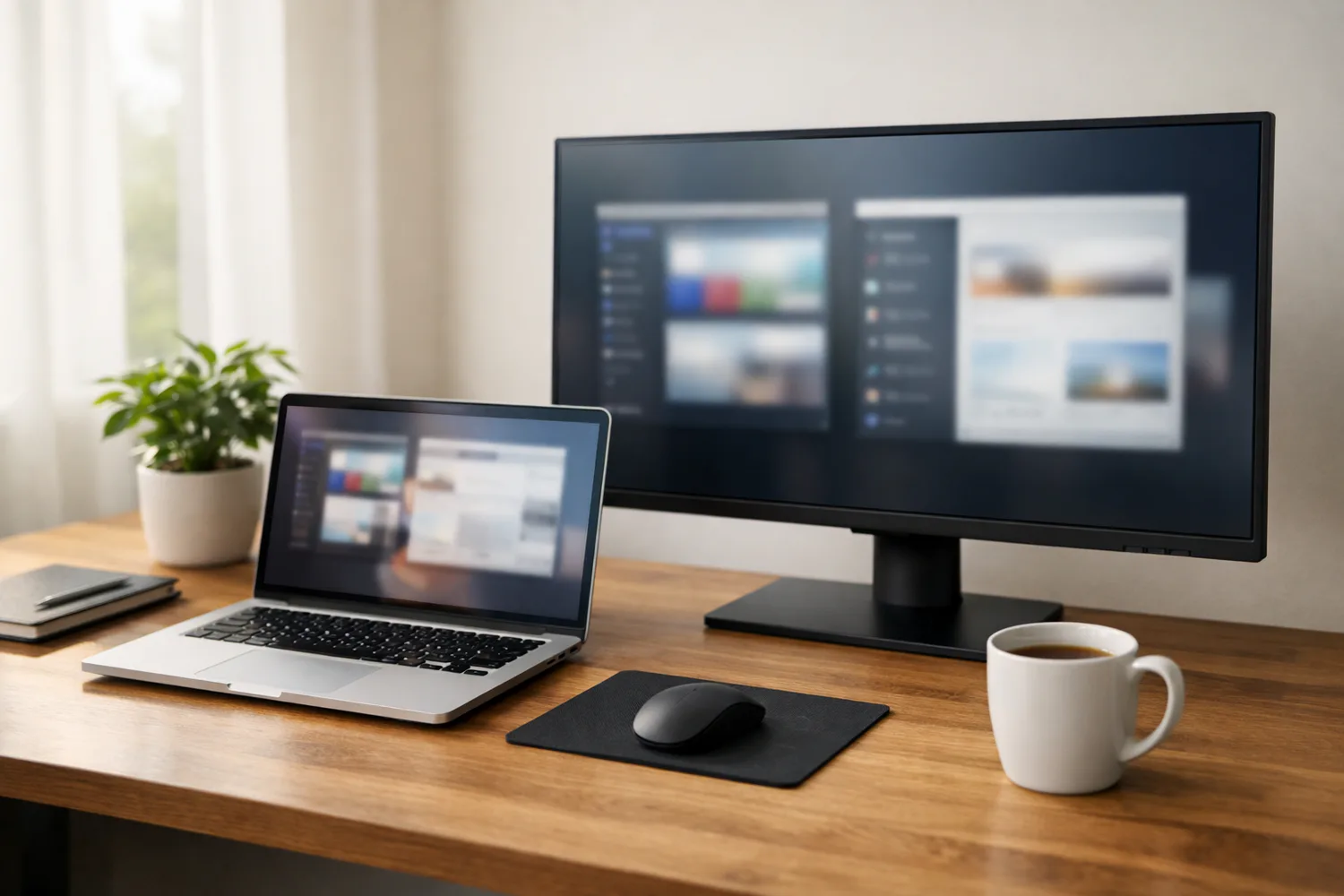
You don't need new hardware to use virtual desktops, but two accessories make them quicker. A mouse with a programmable gesture button, such as Logitech's MX Master 3S, can be set to switch desktops with a flick instead of a keyboard shortcut. And if you work on a laptop, one wide external monitor gives each desktop more room, so you spend less time resizing windows inside every space.
Conclusion
As a hidden gem in Windows, virtual desktops offer substantial productivity benefits by enabling organized and focused task management. By creating dedicated environments for work and leisure, users can optimize their workflow, making this feature an essential tool for Windows users.