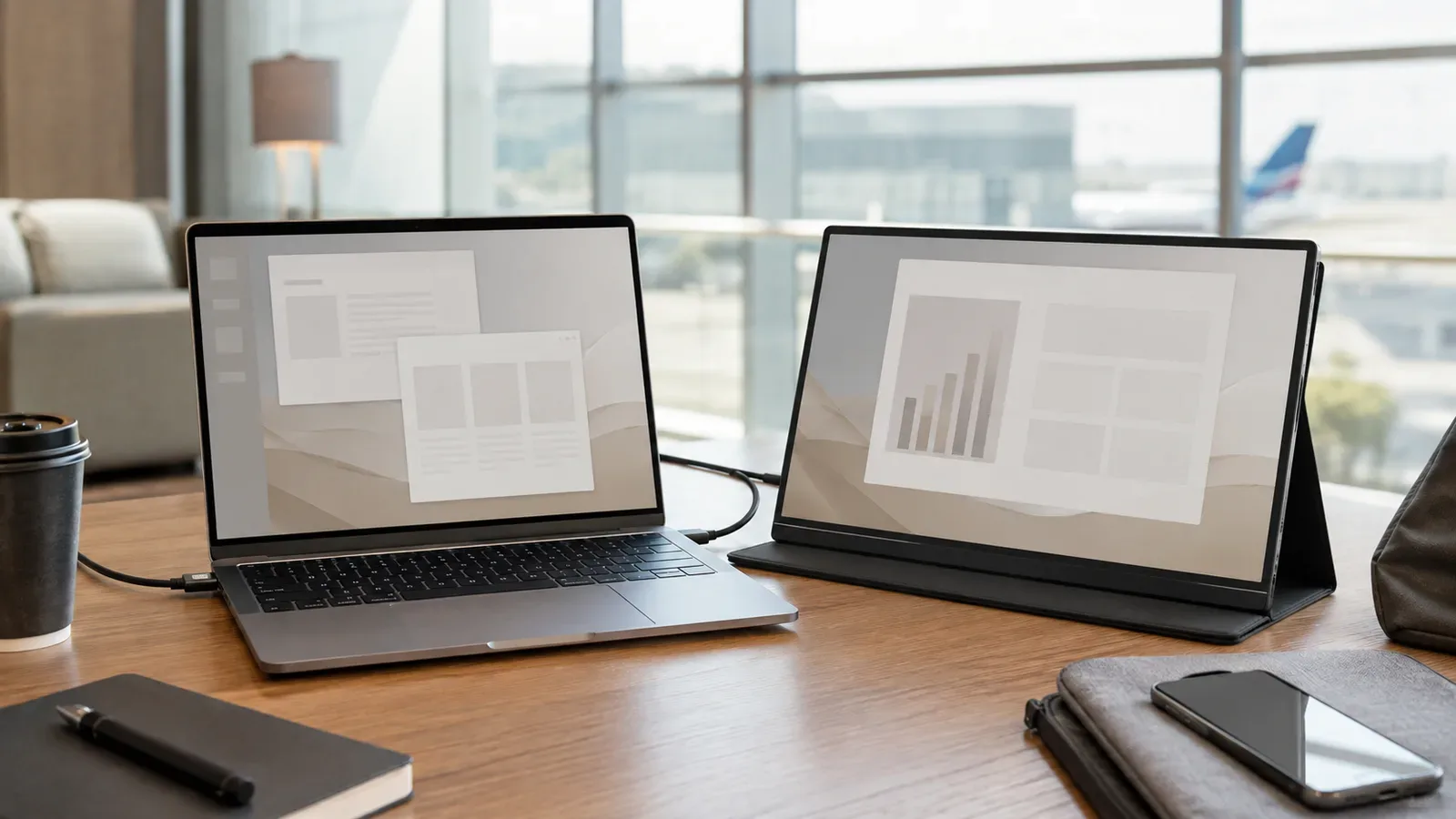
Portable monitors look simple: a thin screen, a folding cover, and one USB-C cable. Compatibility is less simple. A laptop may have a USB-C port that handles data and charging but not video. A cable may charge a monitor yet fail to carry a display signal. A single cable may work at a desk but become unstable when the laptop cannot supply enough power at full brightness.
The safest way to buy is to map the whole connection before comparing panels. Start with the laptop's exact port specifications, then choose the input method, power arrangement, and screen features that match how you work.
First question: can your USB-C port output video?
USB-C describes the connector shape, not every capability behind it. For a direct USB-C video connection, the computer and monitor need a compatible display mode such as DisplayPort Alternate Mode or USB4/Thunderbolt support. Look up the exact laptop model on the manufacturer's support page. A USB logo alone is not enough evidence.
If the port does not output video, HDMI may still work. Many portable monitors include mini-HDMI or full-size HDMI, but HDMI normally carries video only, so the monitor also needs USB power. That means two cables instead of one.
The three common connection setups
One USB-C cable
The laptop sends video and power through one capable port and cable. This is the cleanest travel setup. It also depends most heavily on port capability and available power. High brightness or attached accessories can expose a marginal connection.
USB-C video plus separate power
One USB-C connection carries video while a charger or power bank supplies the monitor through a second port. This can improve stability and preserve laptop battery life. Check the monitor's documented input requirements before choosing a charger.
HDMI plus USB power
This is the practical fallback for laptops with HDMI but no USB-C video. Confirm which HDMI connector the monitor uses and whether the necessary cable is included. Avoid rigid adapters hanging from a small mini-HDMI socket; a short flexible cable puts less leverage on the port.
Do not overlook the cable
USB-C cables are not interchangeable. Some are built mainly for charging and USB 2 data, while others support high-speed data and video. Use the cable supplied with the display for initial setup. If you need a replacement, match the monitor maker's stated video and power requirements rather than buying by wattage alone.
A very long or damaged cable can cause flicker, blanking, or intermittent detection. Pack a known-good spare if the monitor is essential for work, but label it so it does not get confused with charge-only cables.
Panel specifications that affect real work
| Specification | Why it matters | Practical target |
|---|---|---|
| Size | Balances workspace and bag space | Similar height to your laptop screen |
| Resolution | Controls sharpness and scaling | Readable at your normal distance |
| Brightness | Affects use near windows | Manufacturer-documented, with matte finish where possible |
| Aspect ratio | Changes document and video space | Match your workflow, not just the laptop |
| Refresh rate | Affects motion smoothness | Standard office use rarely needs gaming rates |
| Color coverage | Matters for visual work | Look for measured specifications, not “vivid” labels |
A higher resolution is not automatically better on a small panel. It can increase scaling demands and power use. For writing, spreadsheets, coding, and communication, stable connection, readable text, and a good stand usually matter more than extreme pixel density.
Stand and cover design
Folio covers save space but often offer only one or two angles. A built-in kickstand is faster and can work in portrait orientation if the software supports rotation. Check how much desk depth the stand requires; airplane trays and small café tables punish designs that lean far back.
The screen needs protection in a bag. A magnetic cover should stay attached, and ports should not press directly against other objects. A separate padded sleeve adds bulk but protects corners more reliably.
Power and battery planning
Most portable monitors do not have an internal battery. They draw from the laptop or an external source. Laptop-powered operation is convenient but can shorten unplugged runtime. A wall charger is dependable at a hotel or office; a compliant power bank may help on the move, but battery transport rules apply.
The Transportation Security Administration says spare lithium batteries and power banks belong in carry-on baggage, and airline limits may also apply. A monitor with a built-in battery should have clear capacity documentation for travel.
Windows setup and troubleshooting
- Connect the monitor with its supplied cable and power it separately if required.
- In Windows, open Settings, System, Display.
- Select Extend for extra workspace or Duplicate for presentations.
- Arrange the numbered displays to match their physical positions.
- Set scaling separately if text sizes look mismatched.
Microsoft documents the PC screen only, Duplicate, Extend, and second screen only modes. If the display is not detected, verify input selection, try the known-good cable, add separate power, and test another supported port before assuming the panel is defective.
Common buying mistakes
Do not buy solely because the listing says “USB-C.” Confirm video support on both sides. Do not assume every cable in the box carries the same signal. Avoid unsupported promises about HDR, color accuracy, or gaming response when the manufacturer provides no measurement method. Finally, check the return policy because laptop-port combinations can expose compatibility problems that a specification sheet misses.
Who should buy one?
A portable monitor is useful for people who regularly need two documents, a timeline and preview, code and documentation, or a presentation display away from a permanent desk. It is less compelling if the extra screen stays at home; a conventional monitor usually offers a stronger stand, more ports, and better ergonomics for the same space.
The bottom line
Verify the signal path first: laptop port, cable, monitor input, and power. Then compare size, readability, stand design, and protection. The best travel display is not the one with the loudest specifications; it is the one that connects predictably with the equipment you already own.
For a look at one specific model and how deal context can change, see Majumedia's MSI Pro MP165 E6 portable monitor article.