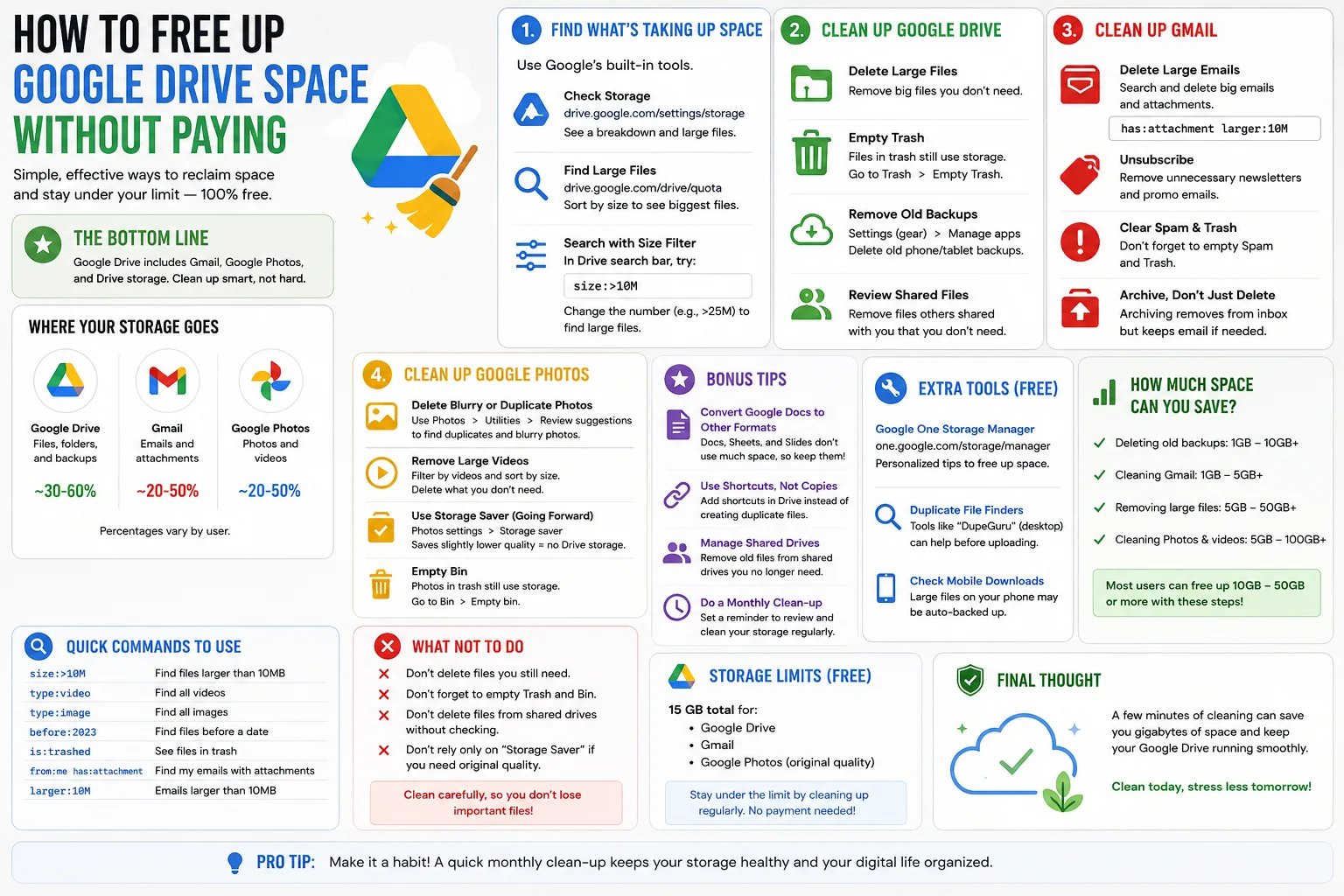
Google gives every account 15GB of free storage, and it disappears faster than most people expect — because that 15GB is shared across Drive, Gmail and Google Photos. The moment it fills, Gmail stops receiving mail and Photos stops backing up, which is exactly the pressure point that pushes people onto a Google One subscription they may not need.
Here is how to find what is actually eating your quota, in the order that frees the most space for the least effort.
Step 1: See what is really using your Google storage
Do not start deleting blindly. Google has a storage manager that breaks your quota down by service and surfaces the largest offenders automatically.
- Go to the Google storage management page while signed in to the account you want to clean.
- Look at the three-way split between Drive, Gmail and Photos. Whichever bar is longest is where you should spend your time.
- Open the built-in cleanup suggestions. Google will flag large files, blurry photos, screenshots and oversized email attachments for you.
- Work top-down through the largest items rather than deleting many small ones.
Almost everyone finds the same thing: Drive is not the problem. Gmail and Photos are.
Step 2: Empty the two trash folders people forget
This is the single biggest quick win, and it catches nearly everyone out. Deleted files in Google Drive sit in Trash for 30 days and continue to count against your quota the entire time. Google Photos keeps its own separate 60-day bin, which also counts.
Emptying both is the fastest way to reclaim space. Before you do, understand that it is permanent — once those bins are emptied, the files are gone and Google support cannot restore them. Scroll through the contents first and restore anything you recognise, then empty.
Where your storage usually goes
| Culprit | Typical size | Effort to clear | Risk |
|---|---|---|---|
| Gmail attachments over 10MB | 1–5GB | Low | Low — download first if needed |
| Drive Trash (30-day bin) | 0.5–3GB | Very low | Permanent deletion |
| Google Photos bin (60-day) | 0.5–4GB | Very low | Permanent deletion |
| Original-quality photo backups | 3–10GB+ | Medium | Quality loss if compressed |
| Spam and Promotions mail | 0.2–2GB | Very low | Very low |
| Shared files you own | Varies | Medium | Removes access for collaborators |
| WhatsApp / app backups | 1–5GB | Low | Loses old chat history |
Step 3: Purge oversized Gmail attachments
Gmail is the quiet storage hog because attachments never expire. The search operators below run inside the Gmail search bar and let you find the heaviest mail in seconds.
- has:attachment larger:10M — every message with an attachment over 10MB.
- larger:25M — the true monsters, usually video or design files.
- in:spam and in:trash — delete both entirely, they count toward your quota.
- category:promotions older_than:1y — a year of marketing mail with tracking images.
- from:noreply older_than:2y — automated notifications you will never reread.
Download anything you want to keep before deleting. After deleting, remember to empty the Gmail Trash — otherwise you have simply moved the problem.
Step 4: Deal with Google Photos properly
Photos is usually the largest single consumer, and it is also where people make the biggest mistake: mass-deleting memories to save a few dollars a month.
Better options, in order of preference:
- Delete the obvious junk first. Screenshots, receipts, duplicate burst shots and blurry frames. Google's cleanup tool surfaces these categories directly.
- Switch new backups to storage saver quality. This compresses future uploads and dramatically slows the rate at which your quota fills. Existing photos are unaffected.
- Archive irreplaceable originals elsewhere. Copy them to an external drive or a second cloud service before you touch anything in Photos.
- Only then consider deleting old originals. And keep a local copy first.
If you are moving photos onto a physical drive, do the transfer properly and verify the copy before deleting the cloud version. And when that old drive eventually gets retired, make sure you wipe it correctly before throwing it away — deleted files are trivially recoverable otherwise.
Step 5: Find the Drive files that are actually large
Native Google Docs, Sheets and Slides files do not count toward your quota at all, which surprises people. What does count: PDFs, videos, images, zip archives and anything uploaded from your computer.
In Drive, open the storage view and sort by size — largest first. Video files are almost always at the top. Also check "Shared with me" carefully: those files count against the owner's quota, not yours, so deleting them saves you nothing. Only files you own matter.
Step 6: Decide whether Google One is actually worth it
After a proper cleanup, plenty of people drop back under 15GB and stay there for years. If you are still over, the question becomes whether the subscription is the right answer for your situation.
Paying makes sense if you shoot a lot of video, run a small business from the account, or genuinely value the bundled extras. It makes less sense if you are paying purely to store years of duplicate photos you never look at. A one-off external drive purchase is frequently cheaper over three years than a recurring plan — and if you are already reorganising a workspace, our home office upgrade guide covers storage that earns its desk space.
Keeping it clean
- Set a quarterly reminder to empty both bins and run the Gmail size search.
- Turn off backup for apps you no longer use — chat backups accumulate silently.
- Unsubscribe rather than delete promotional mail, so it stops arriving in the first place.
- Keep backups in two places, one of which is not Google, before any large deletion.
- Check storage before it hits 100% — a full account bounces incoming mail.
Google Drive storage FAQ
Does Google Drive Trash count toward my storage?
Yes. Files in Drive Trash continue to use quota for 30 days unless you empty the bin manually. Google Photos keeps a separate 60-day bin that also counts.
Do Google Docs and Sheets use storage?
Files created natively in Docs, Sheets and Slides do not count toward your quota. Uploaded files such as PDFs, videos and images do.
What happens if my Google storage is full?
You stop receiving new Gmail messages, Photos stops backing up, and you cannot upload new files to Drive. Existing files remain accessible.
Do files shared with me use my storage?
No. Shared files count against the storage of whoever owns them. Deleting them from your view does not free your own quota.
Can I recover files after emptying the Trash?
Generally no. Emptying the bin is permanent for personal accounts. Workspace administrators sometimes have a short additional recovery window, but you should not rely on it.
Is storage saver quality noticeably worse?
For phone screens and standard prints the difference is hard to see. If you print large or edit heavily, keep originals archived somewhere outside Google Photos.
Sources
- Google Account storage and Google One help documentation
- Google Photos support pages
- Gmail search operator reference
- Android Authority
- Ars Technica