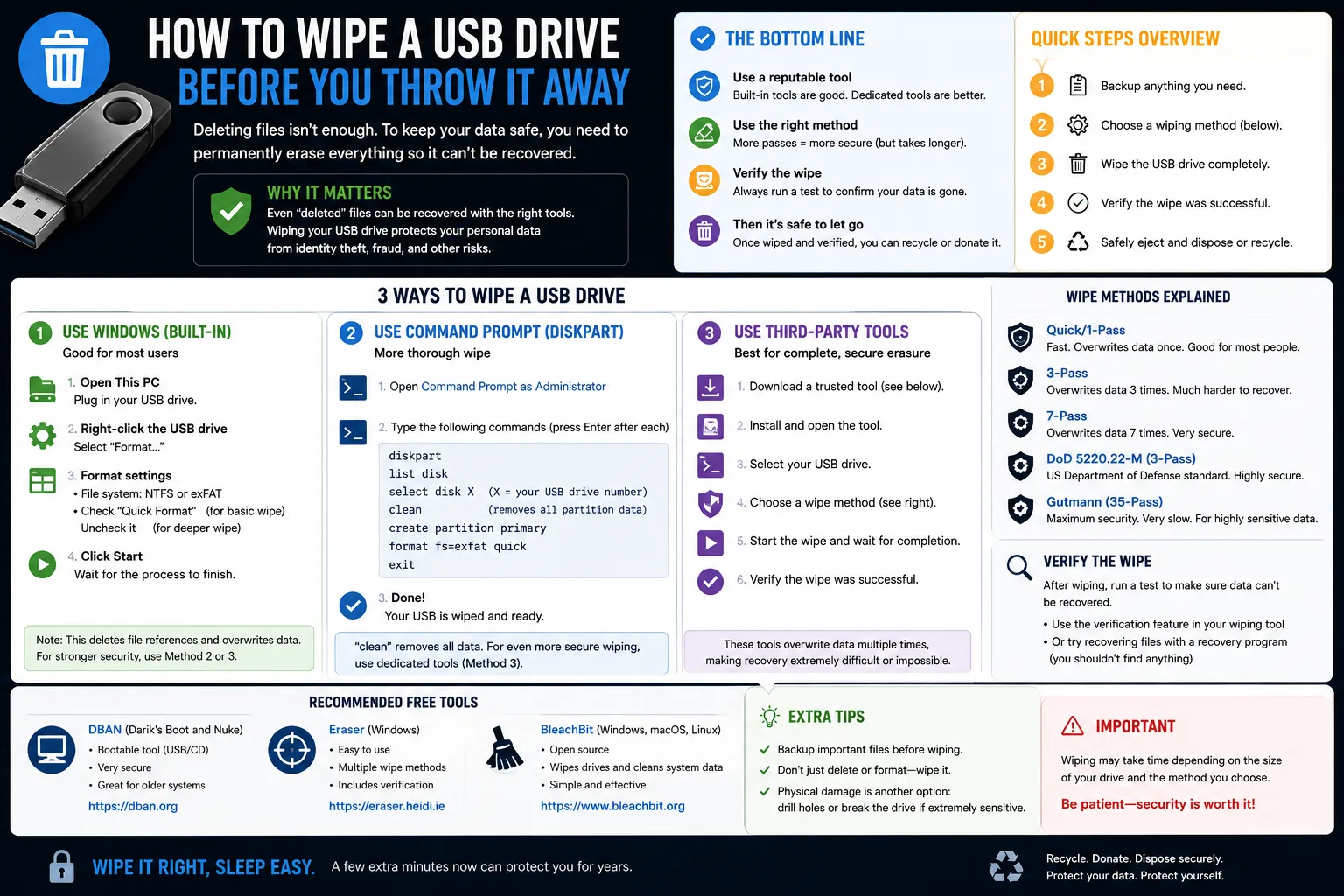
Most people have a drawer with three or four old USB sticks in it. Somewhere on those sticks are tax documents, passport scans, an old CV with your address on it, work files you were not supposed to keep, and a folder of photos you forgot existed. Dragging them to the bin and emptying it removes the index entry, not the data. Recovery software that costs nothing can pull most of it back.
Why deleting files does not delete files
When you delete a file, the file system marks the space as available and moves on. The bytes stay exactly where they were until something else happens to overwrite them. On a drive that is rarely used — which describes almost every USB stick in a drawer — that can be years. This is why data recovery tools work so well and why every study of second-hand drives bought online finds personal files on a large share of them.
A "quick format" is barely different. It writes a new, empty file system table over the top. The data underneath is untouched.
The complication with flash memory
The classic advice for hard drives was to overwrite the whole disk several times. That logic does not transfer cleanly to USB sticks, SD cards and SSDs. Flash memory uses wear levelling: the controller spreads writes across cells to extend the life of the drive, and it keeps spare capacity you cannot address directly. When you tell the drive to overwrite a block, the controller may write somewhere else entirely and quietly retire the old one — still holding your data, still readable by anyone who removes the memory chip.
You cannot fix this by overwriting harder. You fix it by making sure the data was never readable in the first place, which is what encryption does.
The method that actually works
- Copy off anything you want to keep, and check the copies open before you continue.
- Encrypt the whole drive. On Windows, BitLocker To Go handles removable drives; on macOS, right-click the volume in Finder and choose the encrypt option; on Linux, use the disk utility to set up LUKS. Cross-platform, VeraCrypt does the same job free.
- Set a long random password and then forget it deliberately. Do not save it anywhere. Once the key is gone, the ciphertext left in retired flash cells is meaningless.
- Do a full format, not a quick one. In Windows, untick "Quick Format". This writes across the addressable capacity and gives you a clean, usable drive.
- Verify with a recovery tool. Run any free file-recovery program against the drive. If it finds nothing but empty space, you are done.
When to destroy the drive instead
| What was on it | Recommended action |
|---|---|
| Holiday photos, music, install files | Full format is fine; reuse or donate |
| Tax records, payslips, medical letters | Encrypt, then full format, then reuse |
| ID scans, banking documents, client data | Destroy physically |
| Work data covered by a policy or contract | Follow the policy; usually certified destruction |
| Drive is failing or unreadable | Destroy — you cannot wipe what you cannot write to |
Physical destruction means getting to the memory chip, not just snapping the plastic. A hammer through the body of the stick, aimed at the small black chip on the board, is enough for household purposes. Wear eye protection, and take the remains to an electronics recycling point rather than the household bin.
Better uses for a drive you do not need to destroy
- Emergency install media. Keep one stick with a current Windows, macOS or Linux installer on it. The day you need it, you will not have a working computer to make one.
- A multi-boot rescue stick. Tools like Ventoy let you drop several ISO files onto one drive and pick at boot.
- An offline backup of documents that matter. Encrypted, kept somewhere other than your desk. Cloud backups are convenient right up to the point an account is locked or a service is breached — see what happened in the Steam supply-chain breach for a reminder that third parties fail too.
- A password manager escape hatch, holding an encrypted export of your vault.
- Donation. Schools and community repair groups take working drives, but only hand over a drive you have wiped properly.
Mistakes worth avoiding
Do not trust a "secure delete" option that only targets individual files on a flash drive — wear levelling means the file may exist in cells the tool cannot reach. Do not assume a drive is empty because Explorer or Finder says so. Do not sell an old stick on a marketplace for the sake of a couple of pounds; the value is nowhere near the risk. And do not put a working USB drive in the general rubbish, because flash memory belongs in e-waste recycling, along with the rest of the clutter we suggest clearing in our home office upgrade guide.
Wiping a USB drive: FAQ
Does formatting a USB drive erase everything?
A quick format does not. It replaces the file index and leaves the underlying data recoverable. A full format writes across the addressable space and is much safer, especially after the drive has been encrypted.
Why is encrypting before wiping recommended?
Flash drives keep spare cells you cannot address directly, so some old data may survive any overwrite. If everything was encrypted and you discard the key, whatever survives is unreadable.
Can deleted files be recovered from a USB stick?
Usually yes. Free recovery tools routinely restore files deleted months or years earlier, because deletion only removes the pointer to the data.
How do I destroy a USB drive safely?
Open or crush the casing and break the memory chip itself, wearing eye protection, then take the pieces to an electronics recycling point. Do not burn it or put it in household waste.
Is one overwrite pass enough?
For modern drives, multiple passes add little. The weak point is unaddressable spare cells, which is why encryption matters more than pass count.
What about SD cards and old phones?
The same logic applies. Encrypt the storage, then factory reset or full format. On phones, enabling encryption before the reset is the step most people skip.
Sources
- Android Authority: before you throw out your old USB drives, do this first
- Microsoft documentation: BitLocker To Go for removable drives
- Apple support documentation: encrypting external storage in Finder
- VeraCrypt project documentation