iPhone Mirroring has been one of the quieter wins of Apple's Continuity story: open a window on your Mac, drive your iPhone from your keyboard and trackpad, never touch the phone. It has also been slightly frustrating in ways that were hard to ignore. The iOS 27 and macOS 27 Golden Gate public betas fix three of the most obvious ones. Here is what changes for iPhone Mirroring in macOS 27, based on 9to5Mac's hands-on with the public betas.
1. You can finally resize the iPhone Mirroring window
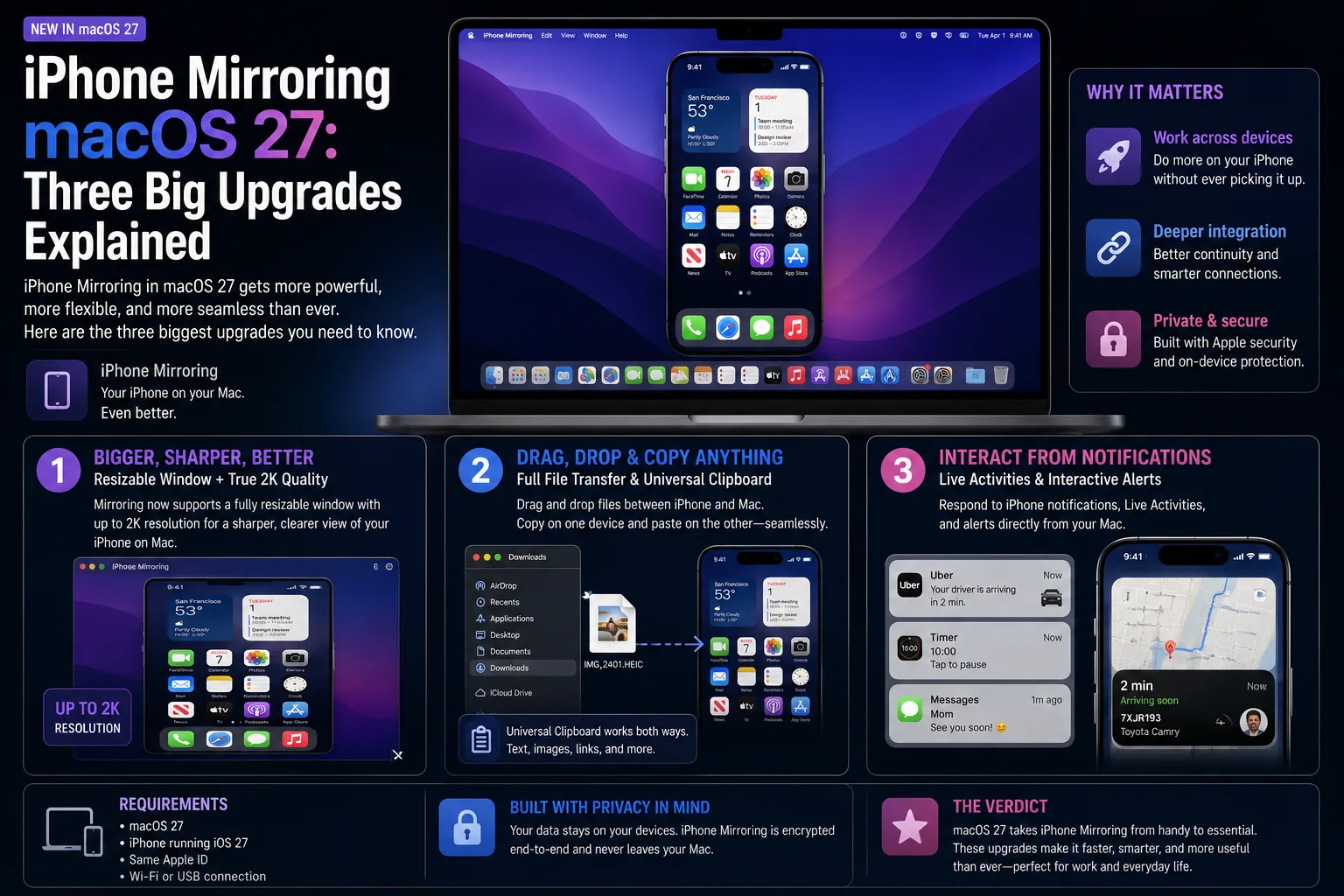
This is the headline change. In macOS 27, the iPhone Mirroring window can be resized freely rather than snapped to a fixed set of options.
Previously, 9to5Mac notes, you were limited to three presets: smaller, actual size and larger. That was fine if one of them happened to suit your display, and irritating if none of them did — particularly on a large external monitor where "larger" still looked small.
There is a caveat worth knowing before you get excited. At the beta stage, free resizing works with Apple's own iPhone apps. Third-party apps need to ship iOS 27 updates before they behave the same way, so expect the coverage to fill in gradually across the autumn rather than arriving complete on day one.
9to5Mac reads this change as groundwork for the foldable iPhone Ultra expected later this year. That makes sense: a device that changes aspect ratio when you unfold it cannot sensibly be mirrored into a fixed-size box.
2. Control Center is finally reachable
The second upgrade is small but removes a genuine dead end. Control Center was simply not accessible through iPhone Mirroring before — there was no gesture or shortcut that got you there.
In macOS 27 you can open it with the CMD+4 keyboard shortcut, or from the View menu in the Mac menu bar.
In practice this matters more than it sounds. Control Center is where toggles for connectivity, focus modes, media playback and screen recording live. Without it, anything that required a quick toggle meant reaching for the physical phone, which defeats the point of mirroring in the first place.
3. DRM video no longer shows a black screen
The third change is DRM video support. Previously, protected video played back as a black rectangle inside the mirroring window — the audio would run, the picture would not.
In macOS 27, DRM-protected video works. If you keep a streaming subscription that only has a decent iPhone app, or you want to check something in a video without breaking your workflow, that limitation is gone.
Apple has also given iPhone Mirroring a new app icon in macOS 27, in line with the visual refresh applied across several system apps.
Who these iPhone Mirroring upgrades actually help
If you already use iPhone Mirroring daily, all three changes remove friction you have probably learned to work around. The resizing change is the one you will notice within seconds.
If you have never tried it, this is a reasonable moment to start. iPhone Mirroring is most useful for people who keep two-factor codes, messaging apps or a banking app on their phone and do not want to break concentration on the Mac to use them. The Control Center addition in particular closes one of the gaps that made the feature feel like a partial solution.
Worth remembering: iPhone Mirroring requires both devices to be signed into the same Apple Account and physically near each other, and your iPhone stays locked while mirroring is active.
Should you install the macOS 27 beta for this?
Probably not on a device you depend on. These are public betas, and public betas break things — battery life, third-party apps, and occasionally the very Continuity features you installed them for.
If you want to try it, use a secondary Mac or iPhone, and take a full backup first. Otherwise, wait for the public releases in the autumn, by which point more third-party apps should also support free resizing.
One caveat on everything above: these observations come from beta software. Apple regularly changes behaviour between beta and release, and features occasionally slip to a later point update.
| What changed | Before | In macOS 27 |
|---|---|---|
| Window size | Fixed, phone-sized | Freely resizable |
| Control Center | Not reachable | Opens from the mirrored window |
| DRM video | Black screen | Plays normally |
| Status | Shipping | Public beta |
iPhone Mirroring in macOS 27: FAQ
Can you resize the iPhone Mirroring window in macOS 27?
Yes. macOS 27 replaces the old smaller, actual size and larger presets with free resizing. In the public betas this works with Apple's own iPhone apps; third-party apps need iOS 27 updates before they resize the same way.
How do you open Control Center in iPhone Mirroring?
Use the CMD+4 keyboard shortcut, or pick it from the View menu in the Mac menu bar. Control Center was not accessible through iPhone Mirroring at all before macOS 27.
Does iPhone Mirroring support DRM-protected video now?
Yes. In macOS 27, DRM-protected video plays inside the iPhone Mirroring window. Previously those videos rendered as a black screen while mirroring was active.
What do you need to use iPhone Mirroring?
A Mac and an iPhone signed into the same Apple Account and kept near each other. Your iPhone stays locked while mirroring, so nobody can see what you are doing on the phone itself.
Which Macs and iPhones support iPhone Mirroring?
It needs an Apple silicon Mac (or a Mac with the T2 chip on supported releases) and an iPhone signed into the same Apple Account, with Wi-Fi and Bluetooth on and both devices physically near each other.
Is iPhone Mirroring available outside the beta?
The three upgrades described here are in the iOS 27 and macOS 27 Golden Gate public betas. Treat them as pre-release until the public releases ship in the autumn.