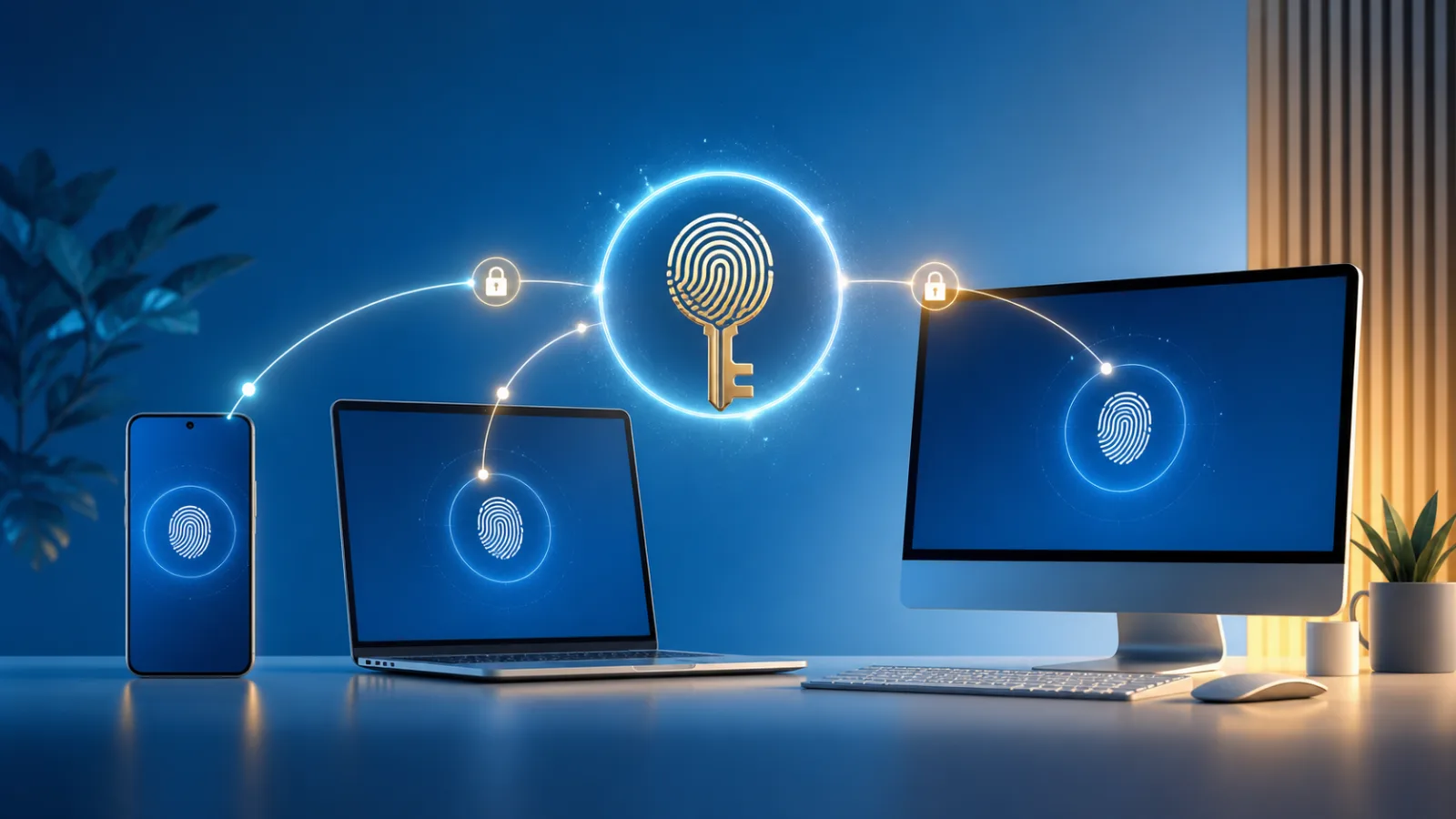
A passkey replaces a typed password with a cryptographic credential stored on a device or in a credential manager. You unlock it using the same local method that protects the device—such as a PIN, fingerprint, or face scan. The important security difference is that the website receives proof from your device, not a reusable secret that can be copied from a fake login page.
Why passkeys resist common phishing
Each passkey is tied to the legitimate website or app that created it. A convincing look-alike page cannot simply collect the credential and replay it elsewhere. The private part remains protected by your device or credential manager, while the service stores a public key used to verify a signed challenge.
This removes password reuse and reduces exposure to credential-stuffing attacks. It does not make the entire account invulnerable: a compromised recovery email, unsafe device unlock code, malicious browser extension, or manipulated support process can still create risk.
Where a passkey actually lives
A passkey may remain on one hardware device, sync through an ecosystem credential manager, or be stored on a dedicated security key. Synced passkeys are convenient across replacement phones and multiple computers. Device-bound credentials offer tighter physical control but require deliberate backup and recovery planning.
| Storage choice | Best for | Main tradeoff |
|---|---|---|
| Synced credential manager | Everyday multi-device use | Security depends partly on the cloud account |
| Single device | Controlled or managed hardware | Loss can complicate recovery |
| Hardware security key | High-value accounts and backup | Costs money and must be kept safe |
A safe setup order
Begin with one important account that supports passkeys and that already has reliable recovery information. Update the operating system and browser. Create the passkey, save it in the credential manager you intend to keep using, then sign out and test a fresh sign-in before removing any older method.
Add a second recovery route. That may be another synced device, a spare hardware security key, recovery codes stored offline, or a carefully protected account recovery method. Do not assume the passkey on the phone in your hand will always be available.
Using a phone to sign in on another device
Many services can display a QR code that lets a nearby phone authorize a sign-in. Bluetooth proximity may help confirm that the phone and computer are near each other. Scan only codes shown by a sign-in you initiated on the correct site. An unexpected QR code in an email, message, or document deserves the same suspicion as an unexpected login link.
Passkeys and device PINs are not identical
The device PIN or biometric normally unlocks the passkey locally; it is not sent to each website as the credential. A short device PIN can still be risky if someone has both the device and knows the code. Use a strong screen lock, enable device encryption, and protect the cloud account that synchronizes credentials.
Should you delete passwords immediately?
Not everywhere. Services are at different stages of adoption, and some retain passwords or recovery fallbacks even after a passkey is added. Confirm how each account handles recovery and whether removing the password is supported. Prioritize email, password manager, financial, developer, and primary platform accounts, because they can unlock many other services.
What to do when a passkey fails
Check that you are using the expected credential manager and account profile. Confirm Bluetooth when cross-device sign-in requires proximity, update the browser, and try an already enrolled device. Use the service’s official recovery path rather than following unsolicited “support” links. After recovery, review active sessions and enrolled credentials.
Bottom line
Passkeys materially improve sign-in security by removing reusable passwords from the normal flow. The best migration is gradual: create one, test it, add a backup, and only then retire weaker methods where the service safely allows it. Pair that change with the broader defenses in Majumedia’s cyberattack protection guide.