Samsung DeX has quietly become the most credible version of a promise the industry has been making since 2011: your phone is the computer, the screen is just glass. Plug a recent Galaxy into a monitor and you get a taskbar, resizable windows, a real mouse cursor and a machine that boots instantly and never has a pending update at the worst moment. The interesting question is not whether it works. It is which parts of a laptop it actually replaces, and which parts it quietly cannot.
What DeX actually is
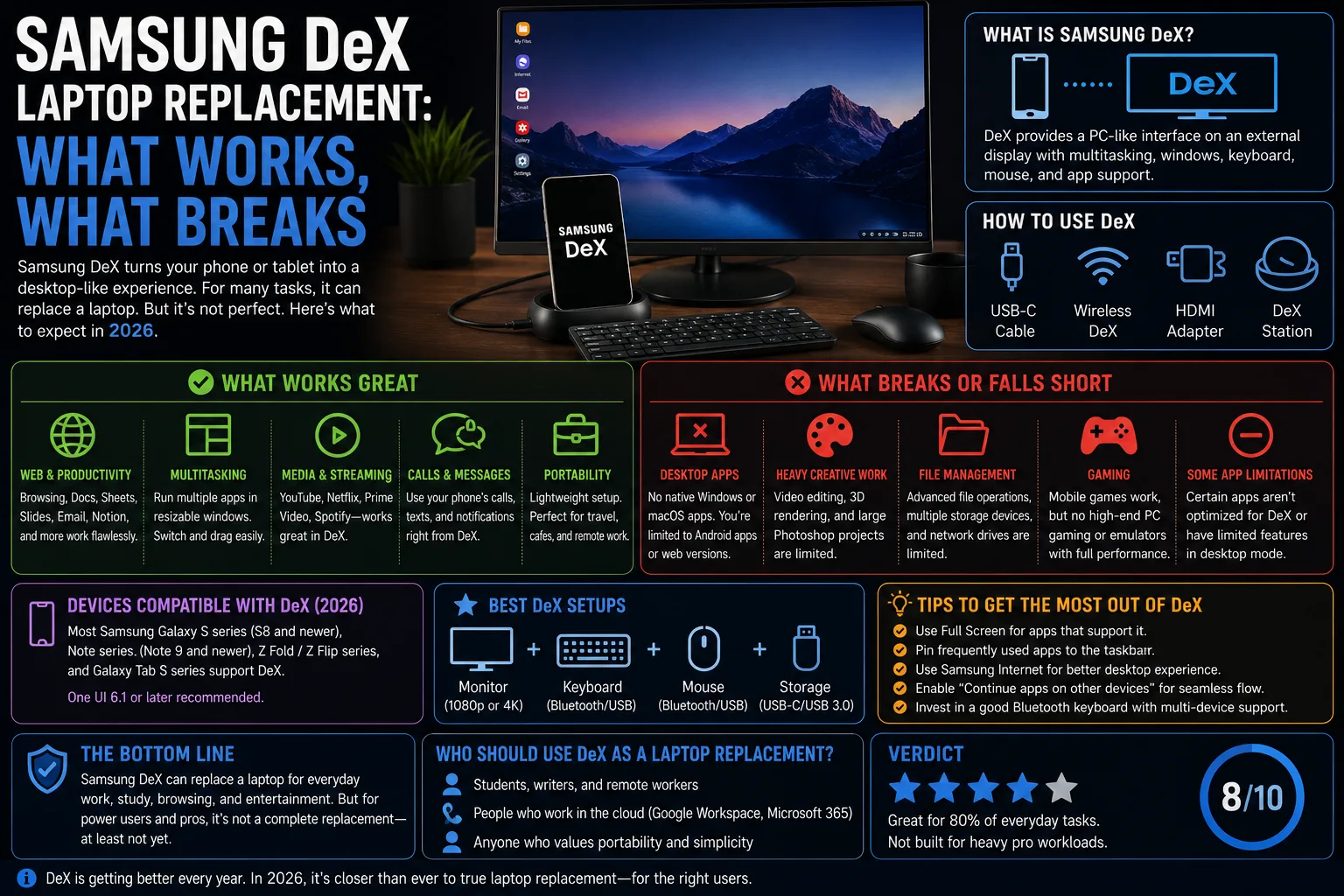
DeX is a desktop shell that runs on top of Android on supported Galaxy phones and tablets. Instead of full-screen apps, you get overlapping windows you can resize, a taskbar with pinned apps, a system tray, drag-and-drop between windows and proper keyboard and mouse input. It exists in two forms that people constantly confuse: a desktop layout on the device's own screen, which is common on tablets, and output to an external display over USB-C or wirelessly, which is what turns a phone into a workstation.
What you need
- A Galaxy phone or tablet that supports DeX with external display output.
- A USB-C to HDMI cable for the simple setup, or a USB-C hub or dock if you want ports.
- A monitor or TV. Any HDMI display works; 1080p is comfortable, 1440p is better for windows side by side.
- A keyboard and mouse over Bluetooth, or plugged into the hub over USB.
- Ideally a hub with power delivery passthrough, because driving a display while running on battery is the fastest way to end a work session early.
- Optionally nothing at all: wireless DeX to a Miracast-capable TV needs no cable, at the cost of latency.
Setting it up properly
- Connect the cable or dock, then choose DeX rather than screen mirroring when the prompt appears. Mirroring gives you a stretched phone; DeX gives you a desktop.
- Pair the keyboard and mouse before you need them, and enable the option that lets the phone screen act as a trackpad as a fallback.
- Set resolution and scaling in DeX settings. On a 1440p panel, reducing scaling buys real window space.
- Pin the six apps you use hourly to the taskbar. DeX is only fast if you stop hunting through the app drawer.
- Plug power into the hub, not the phone, so the display and charging share one cable.
- For wireless, open quick settings, choose DeX, then pick the display. Expect enough lag to rule out gaming and precise photo work.
What genuinely replaces a laptop
- Browser work. Chrome in DeX handles a wall of tabs, and most web apps do not care what is underneath them.
- Email, calendar and messaging, including Slack and Teams, which behave close enough to their desktop versions.
- Documents and ordinary spreadsheets. Writing, editing, commenting and formatting are fine in the Office and Google apps.
- Writing at length, which is mostly about a good keyboard and a big screen rather than compute.
- Note taking and PDF annotation, particularly on tablets where the pen is right there.
- Remote desktop into a real machine. This is the underrated killer feature: DeX becomes a thin client with a battery and a SIM.
What still sends you back to a PC
- Desktop-only software. If your workflow depends on a Windows or macOS application, there is no Android equivalent and no compatibility layer worth relying on.
- Spreadsheets with macros, add-ins or pivot-heavy models, which mobile Office silently declines to run properly.
- Professional video editing and RAW photo workflows, where storage throughput and colour management matter more than app availability.
- Development toolchains, local servers and containers.
- Multi-monitor setups. Plan on one external display.
- Peripherals that need vendor drivers, from label printers to audio interfaces.
- Anything that fails on mobile browsers, including some enterprise portals and streaming services with awkward DRM behaviour.
- ✓One device, instant on, no separate machine to update or charge
- ✓Genuinely capable for browser, document and communication work
- ✓Excellent as a travel setup: a cable and a folding keyboard weigh nothing
- ✓Cellular connectivity built in, so no tethering dance
- ✓Turns any hotel or office monitor into your desk
- ·No desktop applications, and no realistic way around that
- ·One external display, with limited resolution and refresh options
- ·Battery drain and heat unless you power the hub
- ·Phone interruptions land in the middle of your desktop
- ·Support and behaviour vary noticeably between Galaxy models
The friction nobody warns you about
Three things reliably surprise new DeX users. The first is thermal and battery behaviour: pushing pixels to an external panel while charging over the same cable makes a phone warm, and a cheap unpowered hub turns a full day into three hours. The second is that the phone stays a phone, so an incoming call arrives on the screen you are working on. The third is window management that is 90% of a desktop, which is exactly the amount that makes the missing 10% irritating. Some apps refuse to resize sensibly, keyboard shortcuts are inconsistent between apps, and file pickers vary depending on which app opened them.
None of that is fatal. It does mean DeX rewards a deliberate setup: a powered hub, a mechanical or folding keyboard you actually like, a monitor that scales well and a short list of apps you have confirmed behave in windowed mode.
Who should actually try this
DeX is a real laptop replacement for people whose work lives in a browser, a mail client and a document editor, and it is an outstanding second desk for everyone else. Travellers, students, hot-desk workers and anyone who mainly remotes into a stronger machine will get more out of it than they expect. If your day includes a compiler, a timeline or a spreadsheet with macros, treat DeX as an excellent travel companion to a laptop rather than a substitute for one, and buy the hub anyway.
Which Samsung devices support DeX?
Recent Galaxy S and Z series flagships and many Galaxy Tab models. External monitor output additionally needs DisplayPort Alt Mode over USB-C, which some mid-range tablets omit even though they still offer the DeX desktop layout on their own screen. Check the spec sheet for your exact model.
Do I need a dock, or is a cable enough?
A USB-C to HDMI cable is enough to get a desktop on screen. A powered hub is worth it the moment you want charging, wired peripherals or an Ethernet connection at the same time.
Can I use two external monitors?
No. Plan around a single external display, and use the phone or tablet screen as a secondary surface or trackpad.
Does the phone charge while connected to a monitor?
Only if power is supplied, which normally means a hub or dock with power delivery passthrough. A bare HDMI cable will drain the battery while the display is running.
Can I still use the phone while DeX is running?
Yes. The phone screen remains usable independently on most models, so you can take a call or read messages without disturbing the desktop session.
Is wireless DeX good enough for work?
For slides, documents and reading, yes. The latency makes it unpleasant for precise cursor work, video editing or gaming, so use a cable when accuracy matters.
Can DeX run Windows programs?
No. DeX runs Android apps in a desktop layout. The practical workaround is remote desktop or a cloud PC, which works well because DeX makes an excellent thin client.